Built by a contractor. For the work you actually do.
AI that knows what the next step is for.
RoxyPM’s AI works inside your contractor workflows. Capture information, draft the next document, review a change and keep the result with the job. Explore the tools by the work you need to do.
14 days free. Cancel anytime.

From first contact to site visit
From a screenshot to a filled-out lead.
A customer texts you about a kitchen remodel. Someone forwards an email referral. Take a screenshot and let Roxy fill in the lead for you: name, phone, email, address and job notes, using the details it finds. Review it, add anything missing and save. No copying the conversation into a form one field at a time.
Know who needs a call.
Score leads against the kind of work you want, with reasons behind the score. Ask Roxy to draft a follow-up using the conversation and job details already on file.
Walk the job. Talk through the work.
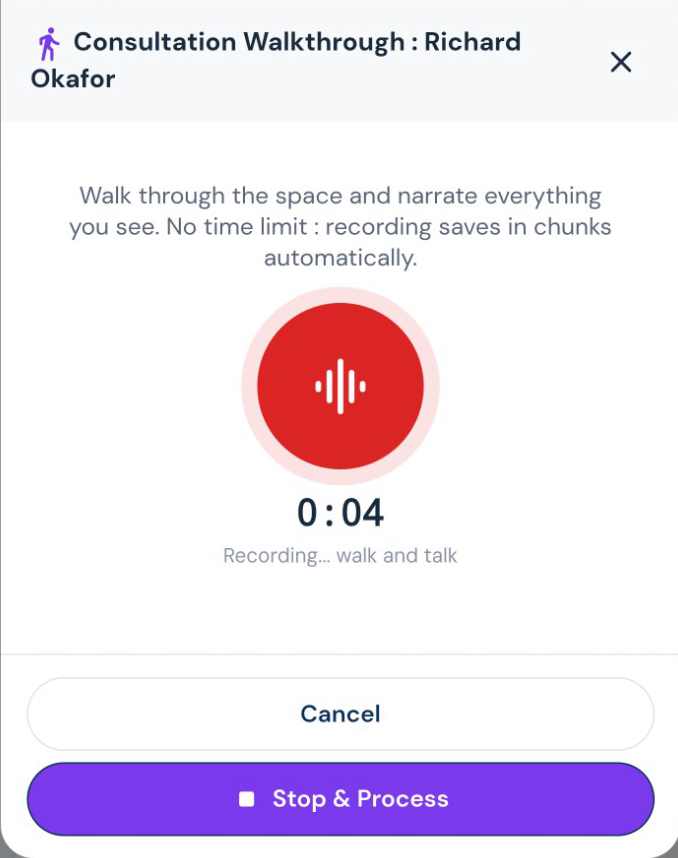
Record what you see while it is fresh. Roxy turns your walkthrough into organized notes and scope that can feed the estimate, instead of another notebook to type up tonight.
Get a real appointment confirmation.
Turn the scheduling text into a calendar draft. Send a confirmation link so the customer can confirm or ask to reschedule, and see which visits still need an answer.
Read it once. Put it to work.
Extract job information from uploaded documents, turn document text into task drafts, and import contacts or supplier details. Check the extracted information before using it in the job.
Get some context before the visit.
Use property research and AI-assisted walkthrough preparation to organize what is known about a lead. Add the actual site information as you learn it; research is a starting point for your own inspection.
Know more before you take the job.
Use the client background checker to research available public information and flag questions worth asking. Review the sources, useful context and potential concerns before deciding how to proceed. It is research for your judgment, not a certified credit or criminal background report.
Attach the screenshot, choose Read All and review the details Roxy fills in. Actual mobile recording.
Estimating, proposals and revisions
Your scope. Your terminology. Your pricing.
Give Roxy the scope of work, photos, handwritten notes or project documents. With your company knowledge available, it can draft the estimate using your terminology, pricing references and contract preferences. Review the quantities, labor, materials and markup, then send a proposal that sounds like your company.
Teach it how your company bids.
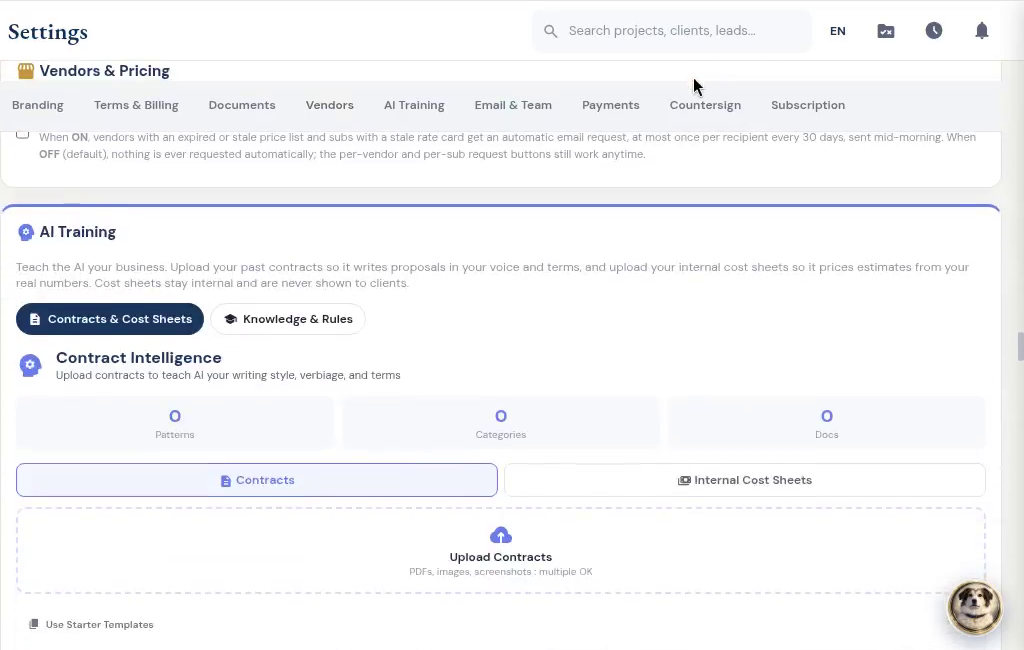
Upload your contracts and cost sheets. Roxy can use your terms, pricing knowledge and field shorthand when drafting new work. You can inspect what it learned and reverse unwanted learning.
Show the price the way you sell.
Send a lump-sum proposal, room-by-room totals or line-item pricing. Add optional upgrades, your terms and a payment schedule. Your internal labor costs and markup stay separate from the customer presentation.
Change the countertop. Keep the rest.
Tell Roxy what to change in an estimate, by voice or text. Review the proposed edits before saving. Sent estimates retain previous versions; changes to a sealed estimate follow a separate revision.
Work from the customer’s markup.
Upload the marked-up estimate rather than retyping the notes in the margin. Roxy drafts the revision for review. Scope comparison helps you see additions, removals and changes between scopes.
Put the agreed work in writing.
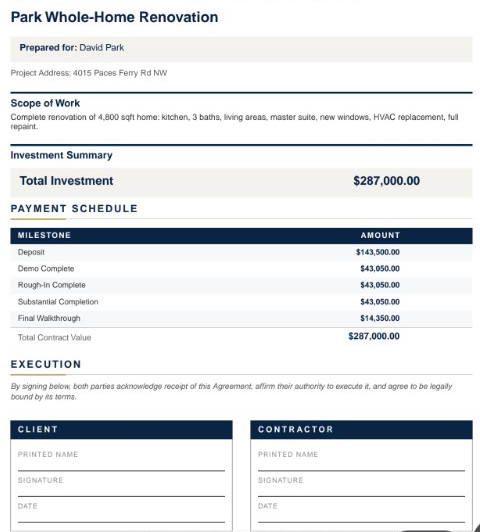
Draft contracts and letters of intent from the job information, then review your terms before sending. Reuse your document templates and let AI help fill the project details.
Help them picture the finished room.
Create an AI render from an existing-space photo and your instructions, refine it, and share a before-and-after slider under your company name. Use it to discuss the idea, not as a construction drawing.
Make the proposal look like your work.
Generate a proposal cover and banner from the scope, use your job photos, and adjust the image with AI. Re-center the crop so the detail you want to show survives in the PDF and client view.
Get the next lists started.
Use the estimate scope to draft a materials list and the selections the customer still needs to make. Review quantities and choices before ordering.
The work on site
Say it once. Put the next steps in motion.
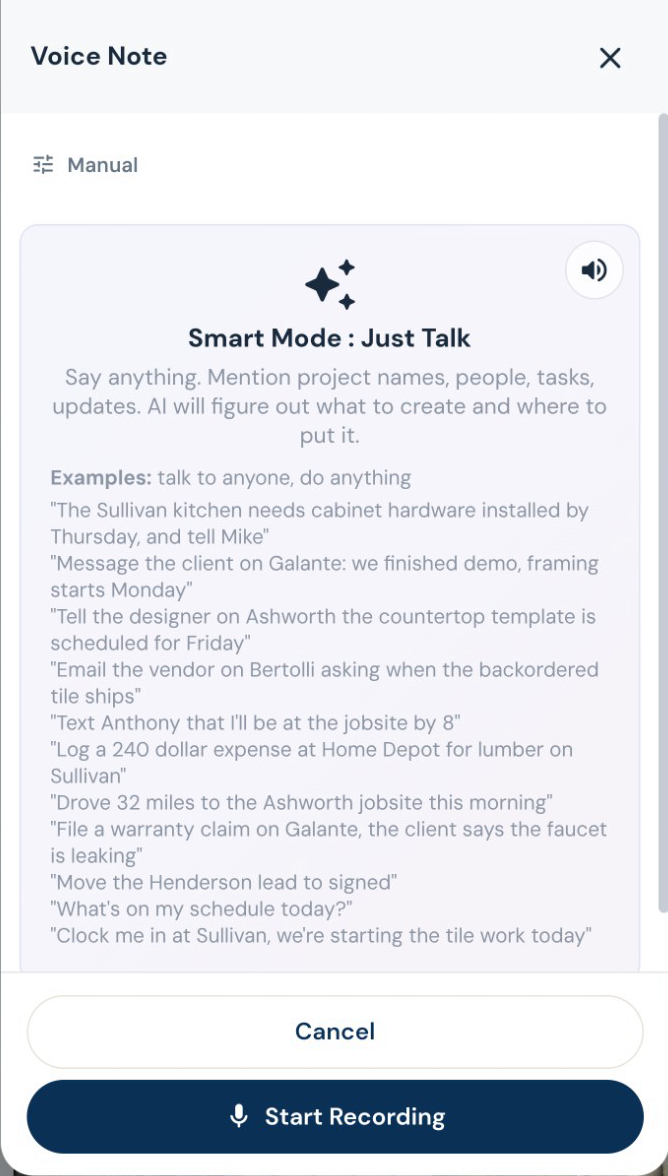
Turn a spoken instruction into tasks, calendar events, new leads, job notes and email drafts. Log an expense, update a task or ask what is on the schedule while you are still on site. Roxy can handle several supported actions from one conversation. Review outgoing messages before they are sent.
The day’s record, before you forget it.
Speak the day’s progress, delays and site notes. AI organizes the daily log, while photos and files keep the job history together. Ask for a project summary before the next customer call.
The signed scope starts the job.
Carry the customer and agreed work into the project. AI Launch proposes tasks, phases and a schedule for review. Rescan when new information arrives instead of rebuilding the plan by hand.
Put the trades in the right order.
Work with trade-specific phases, tasks and Gantt schedules. AI can suggest sequencing and flag scheduling conflicts for review, while crews record their time against the work.
“While you’re here” belongs on the job.
Draft a change order from the requested work, review its price, and put it in front of the customer for approval. Approved changes flow into the job’s money and payment picture.
Finish the punch list. Keep the history.
Keep punch items, photos and completion acceptance with the project. If a warranty call comes later, log it against that job and ask AI to assess it against your recorded terms before you decide.
Keep the measurements with the room.
Read measurement notes from an image, review the extracted values and keep the measurement record with the job. This helps with transcription; it does not replace measuring the site.

Decisions you can come back to
A signature with a document behind it.
Customers sign in their portal. Signed estimates and approved change orders are stored as sealed PDFs with a signature certificate. Keep the signed version with the job.
Keep both sides of the agreement.
Countersign the customer’s approved contract. Optional automatic countersigning follows the configured approval and payment conditions. Completion acceptance is its own request and certificate at closeout.
Keep the designer in the conversation.
Give the designer a place to submit selections, share files and message about the job, even before it becomes a project. Designer and client approvals are tracked separately, and submitted costs wait for your team’s approval.
Know when a selection changes the budget.
Track selections and allowances by job. Keep the model, finish, supplier and approval together, and handle an over-budget choice through the change process before it becomes a surprise at collection.
Your customer can sign and pay in the same place.
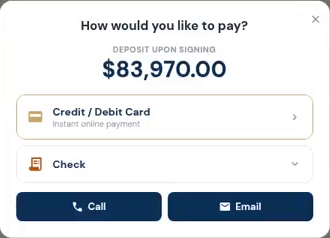
Send a branded client portal where the customer can review the proposal, e-sign and pay using the payment options you have connected. Selections, approved changes, shared updates and signed documents stay with the job. Your internal costs and markup stay out of the customer view.
The customer opens the deposit and sees how to pay. Actual demo recording; no payment is submitted in this clip.
Invoices, payments and job money
Bill the way the job is paid.
Create itemized invoices, request a deposit, bill milestones, or set up recurring invoices. Record checks and other payments received outside the app, and apply credit memos without losing the history.
Request a partial progress payment.
Request a percentage of a payment milestone, account for previous collections and keep the remaining balance with the job.
Make the next payment easy to find.
Send a payment request tied to the job. Customers can see what is due and use the payment options you have connected. Partial payments and approved changes stay visible in the balance.
Let the paperwork fill the first draft.
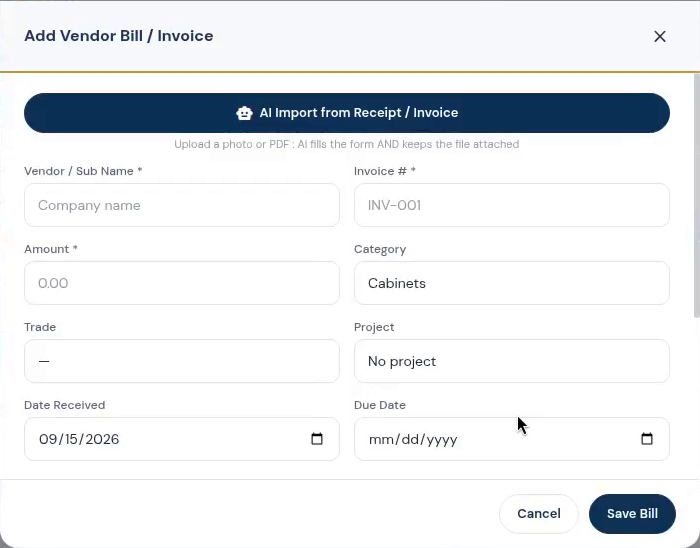
Scan receipts, vendor invoices and contact documents instead of entering them twice. AI extracts the details for review so expenses, bills and supplier records can stay connected to the work.
See what the job is leaving you.
Compare the contract, collected payments, labor and material costs on the job. Review budget versus actual, receivables and company reports, with AI insights to help you decide what needs attention.
Keep the office connected to the job.
Manage purchase orders, vendor bills, draw schedules and lien-waiver records alongside your projects. Connect QuickBooks Online when it is part of your accounting process; the accounting subscription remains separate.

Subs, suppliers and designers
The electrician needs the electrical scope.
Build trade-specific bid requests from the job’s notes, documents and estimate. Send the relevant work to subs and vendors, collect their submissions, and compare the bids before awarding the work.
Start with their business card. Get the sub ready for work.
Snap or upload a business card and let AI fill the subcontractor details for review. Save the record, then start onboarding with the agreement, W-9 request, insurance upload and portal access together. Your sub signs and provides the paperwork through their own links. You can see what is complete and what you are still waiting for.
Know before the insurance expires.
AI reads uploaded insurance and license documents for expiry dates. Your team can check the extracted date, and renewal reminders go out within the two-week window before expiry and when overdue.
Give each sub the work that belongs to them.
Subs can find assigned projects, tasks, bid invitations and payment requests in their own workspace. Workers can record time and upload job photos. Suppliers have order, delivery and invoice workflows.
Turn the selection paperwork into selections.
A designer can use AI-assisted selection analysis and bulk import from the portal. Product details, photos and approval requests stay with the estimate or project instead of scattered across email threads.
Find the supplier, keep the details.
Ask AI to help locate suppliers around the job, then review the results and add the right contact. Import supplier price sheets and keep purchasing information with your vendor records.
Give the supplier a place to send it.
Orders, delivery updates, invoices, messages and price sheets belong with the supplier. The vendor portal lets them send the details back without giving them access to the rest of your business. You can also request fresh prices and choose automatic reminders for stale lists.

Review the imported sub, then choose insurance requirements. Edited demo excerpt; agreement signing and document submission are separate steps.
The office after the jobsite
Write the update with the job in mind.
Ask AI to draft emails, texts and follow-ups using the customer and project context. Review what you send. Scheduled follow-ups and review requests run when you enable those automations.
Catch up before the phone rings.
Ask for a project summary, daily digest or PM briefing. AI brings together the recorded activity so you can review what changed, what is waiting and what needs a follow-up.
Ask for the review while the job is fresh.
Send a review request from the project or enable automatic requests after completion. Add your review-site links, choose what appears on your company portal, and reuse permitted reviews on your website.
Follow up without starting from a blank page.
Use your company website and campaign focus to draft an email campaign. AI also helps with company descriptions, bios and feedback analysis. Choose the recipients and review the message before sending.
Keep recurring work on the calendar.
Set up recurring services, upcoming visits and reminders. Keep maintenance work and recurring invoices organized alongside your larger projects, without rebuilding the same schedule each time.
Ask for help in the middle of the work.
Roxy can answer questions about the app, guide you through screens and help translate text. English, Spanish and Portuguese support helps the office, clients and field crews work in their preferred language.
The more you use Roxy, the more it knows your business.
Your pricing, your contract language, your way of doing the work. Give Roxy a head start with past documents, then keep working. It learns from your corrections, saved pricing, payment schedules and preferences in the background, so future suggestions fit your company better.
You already taught yourself the hard way. Teach Roxy from that work.
Bring old contracts, cost sheets, supplier invoices and paperwork from completed jobs. Upload PDFs, spreadsheets, photos of pages or handwritten notes. Import supported CSV exports from your previous software and review the results. Put the business knowledge you already have to work on the next job.
Pick the voice you want riding along.
Roxy has a choice of voices and personalities. Talk through the day, ask a question, or get a guided tour of the app in a voice that suits you. Your assistant remembers your preferences across conversations, so you spend less time explaining yourself again.
Set it up for the way you run a job.
Use your own contract templates, terms, payment methods, branding and field-note shorthand. Set follow-ups and task rules for the steps you repeat. Decide when countersigning happens and whether sub payment requests need a signed lien waiver.
Help getting started. Backups while you work.
Get a walkthrough with the contractor who built RoxyPM, use in-app guidance when you need it, and contact support with questions. Automatic daily cloud backups protect the business records behind the work. You can also export your data.

Shop work and investor projects
Bring the paperwork onto the shop floor.
Import cabinet and stone jobs from files, pasted information or voice. Review the draft, then track the work through the shop’s production stages. Delivery quick-add turns a job description into an order draft.
Look at the deal before you buy the job.
For investor-builders, analyze purchase, rehab, holding and financing assumptions together. AI assists with property research, renovation scope, risk and deal analysis; review the inputs and turn an acquired deal into a project.
Read the claim documents with the job.
AI can extract information from insurance letters and claim documents for review. Keep the paperwork with the lead or job, and share the relevant records through the appropriate portal.