Built by a contractor. For the work you actually do.
Take a closer look at the work.
Explore the current app screens and the workflow behind each one. Start with the part of the day you want to make easier, then bring your questions to a live walkthrough.
14 days free. Cancel anytime.

Try an actual RoxyPM render
Help them see what you mean.
Start with a photo of the space. Show the customer a design concept, then slide between the two while you talk through the idea. This example was shared by Roxy’s Renovations.
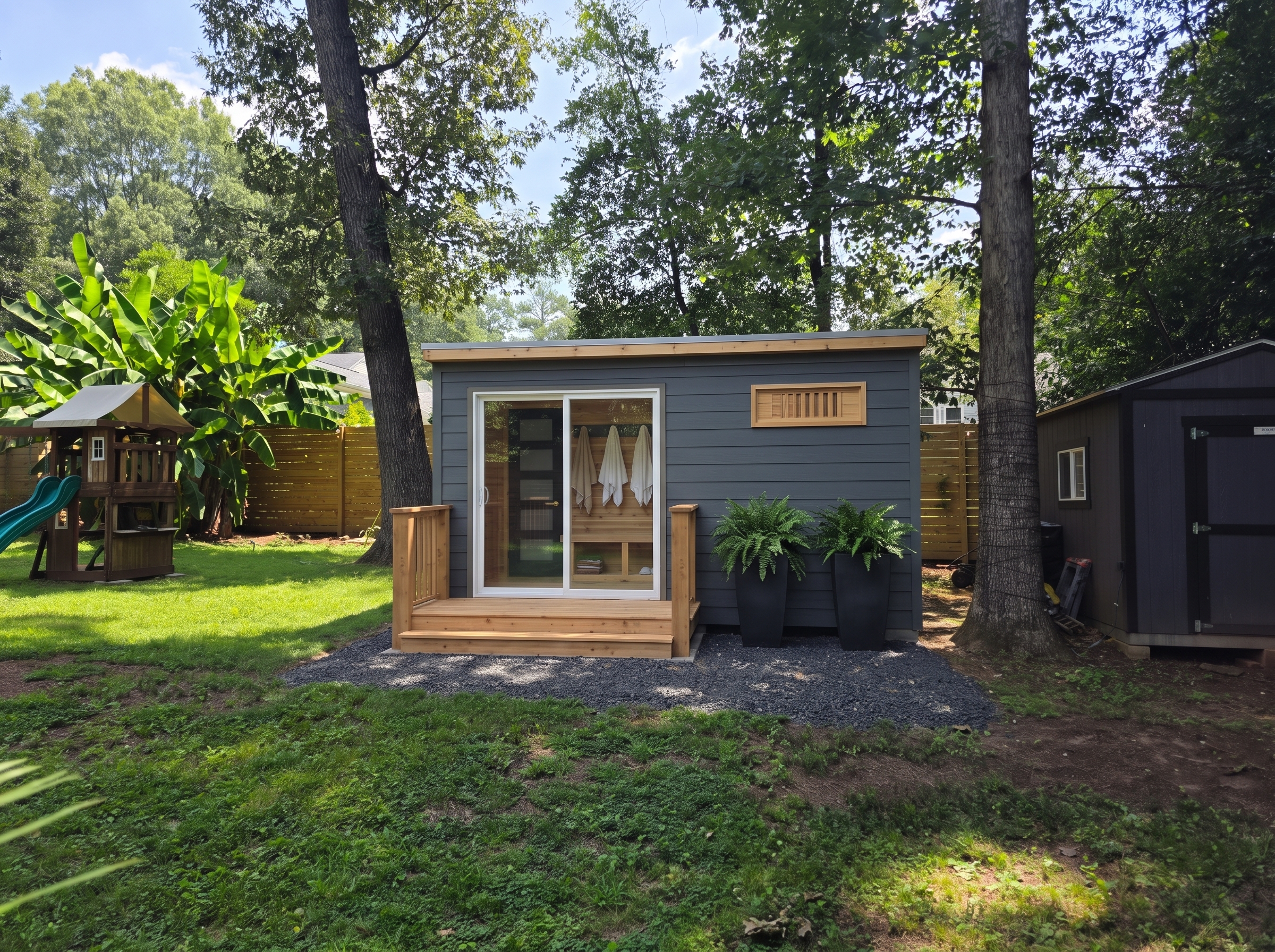
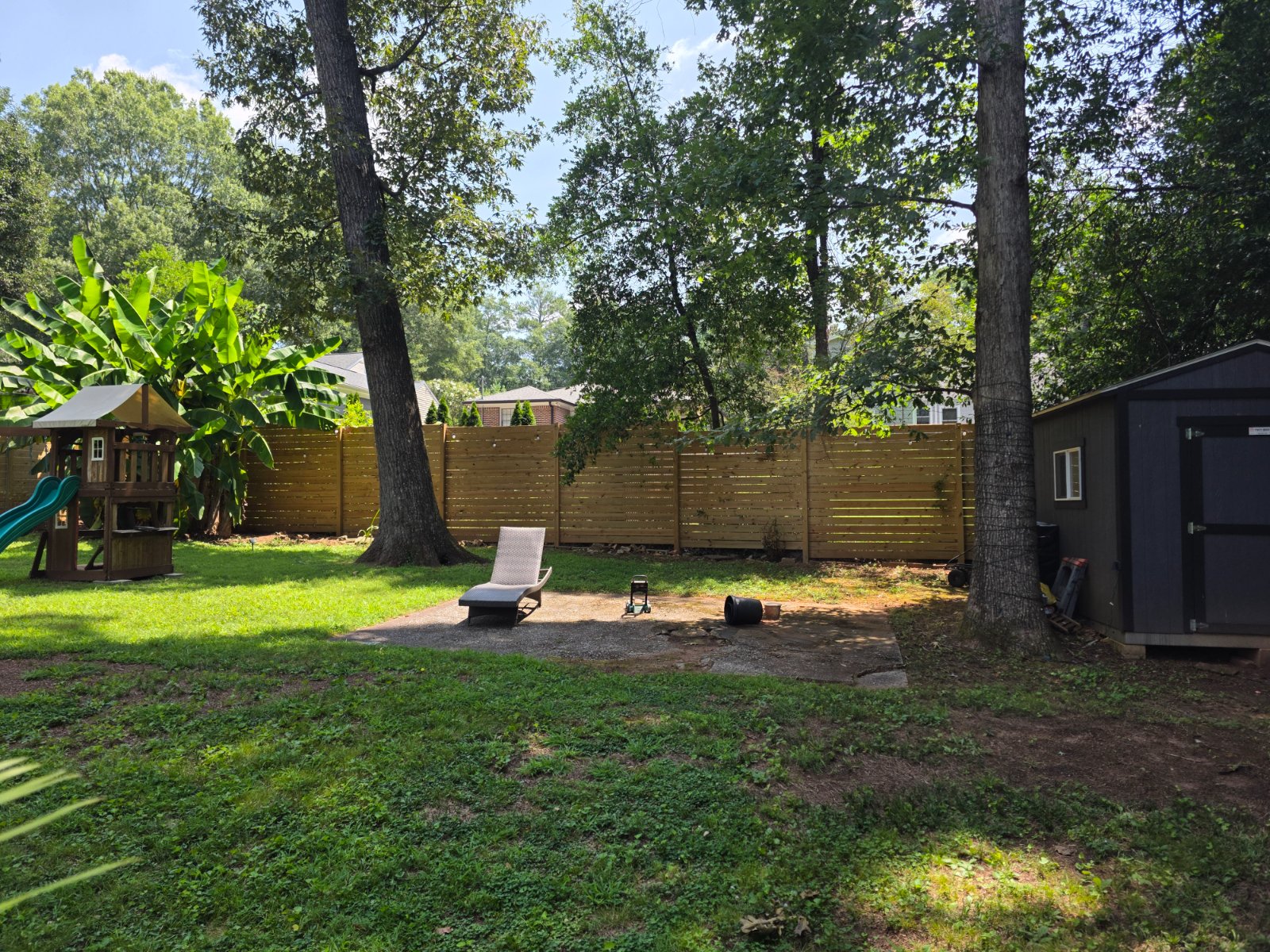
Drag the divider or use the arrow keys. The original photo is real; the AI concept shows a possibility, not completed construction.
Open the shared client viewA closer look inside the app
Start with your company’s way of working.
See the company learning settings
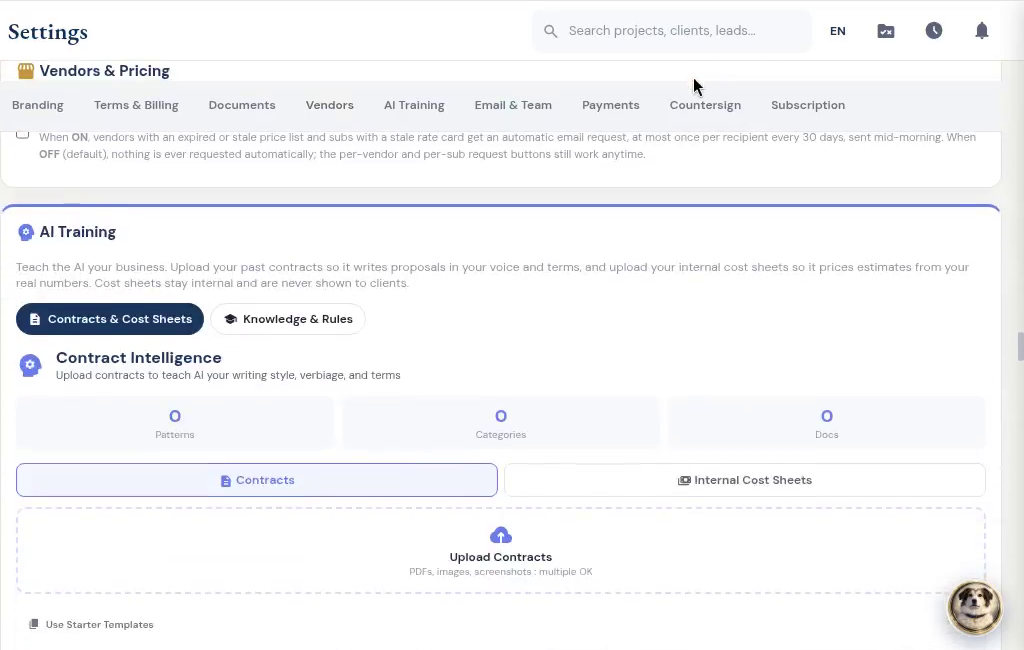
Bring your contracts and costs into AI Training. This clip shows where you start, before documents are added.
See the payment-method settings
Choose the ways you accept payment and the instructions your customers see.
From first contact to site visit
From a screenshot to a filled-out lead.
A customer texts you about a kitchen remodel. Someone forwards an email referral. Take a screenshot and let Roxy fill in the lead for you: name, phone, email, address and job notes, using the details it finds. Review it, add anything missing and save. No copying the conversation into a form one field at a time.
Walk the job. Talk through the work.
Record what you see while it is fresh. Roxy turns your walkthrough into organized notes and scope that can feed the estimate, instead of another notebook to type up tonight.
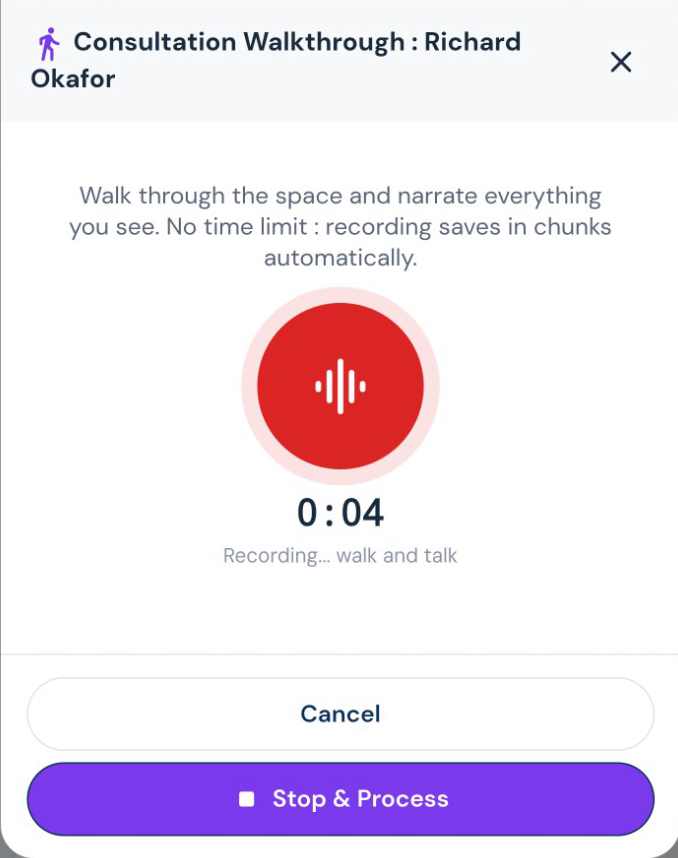
Attach the screenshot, choose Read All and review the details Roxy fills in. Actual mobile recording.
The office after the jobsite
Follow up without starting from a blank page.
Use your company website and campaign focus to draft an email campaign. AI also helps with company descriptions, bios and feedback analysis. Choose the recipients and review the message before sending.
The work on site
Say it once. Put the next steps in motion.
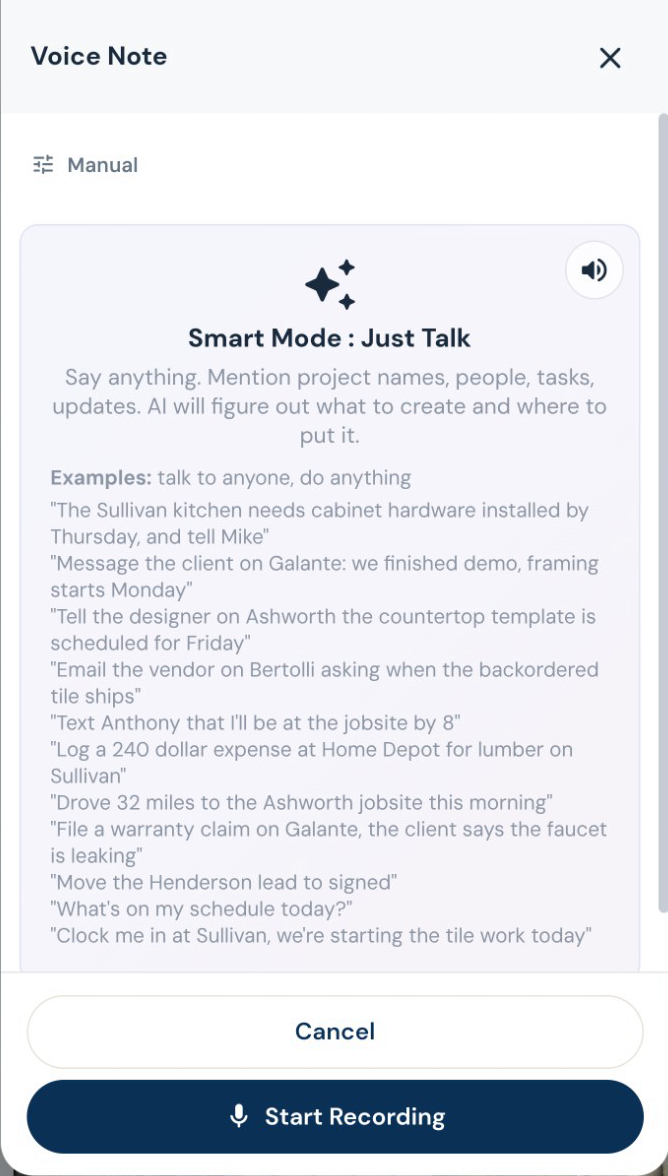
Turn a spoken instruction into tasks, calendar events, new leads, job notes and email drafts. Log an expense, update a task or ask what is on the schedule while you are still on site. Roxy can handle several supported actions from one conversation. Review outgoing messages before they are sent.
The signed scope starts the job.
Carry the customer and agreed work into the project. AI Launch proposes tasks, phases and a schedule for review. Rescan when new information arrives instead of rebuilding the plan by hand.
Estimating, proposals and revisions
Your scope. Your terminology. Your pricing.
Give Roxy the scope of work, photos, handwritten notes or project documents. With your company knowledge available, it can draft the estimate using your terminology, pricing references and contract preferences. Review the quantities, labor, materials and markup, then send a proposal that sounds like your company.
Help them picture the finished room.
Create an AI render from an existing-space photo and your instructions, refine it, and share a before-and-after slider under your company name. Use it to discuss the idea, not as a construction drawing.
Subs, suppliers and designers
Start with their business card. Get the sub ready for work.
Snap or upload a business card and let AI fill the subcontractor details for review. Save the record, then start onboarding with the agreement, W-9 request, insurance upload and portal access together. Your sub signs and provides the paperwork through their own links. You can see what is complete and what you are still waiting for.
Review the imported sub, then choose insurance requirements. Edited demo excerpt; agreement signing and document submission are separate steps.
Decisions you can come back to
Your customer can sign and pay in the same place.
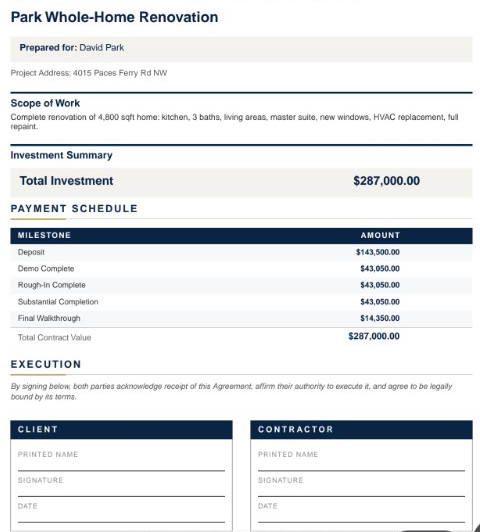
Send a branded client portal where the customer can review the proposal, e-sign and pay using the payment options you have connected. Selections, approved changes, shared updates and signed documents stay with the job. Your internal costs and markup stay out of the customer view.
Keep the designer in the conversation.
Give the designer a place to submit selections, share files and message about the job, even before it becomes a project. Designer and client approvals are tracked separately, and submitted costs wait for your team’s approval.
The customer opens the deposit and sees how to pay. Actual demo recording; no payment is submitted in this clip.
Make it your own
Set it up for the way you run a job.
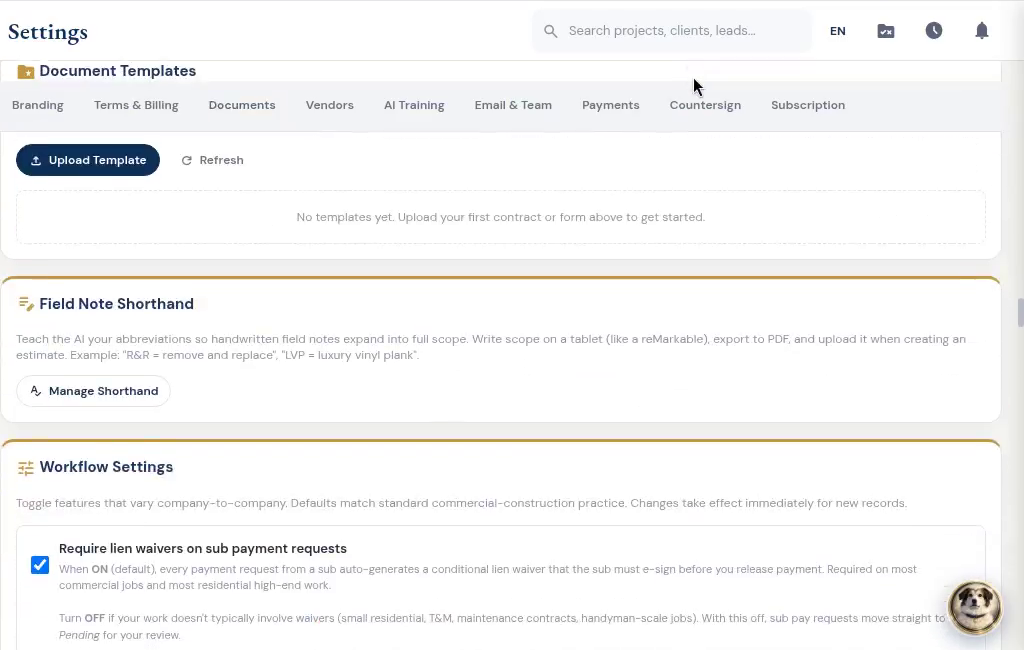
Use your own contract templates, terms, payment methods, branding and field-note shorthand. Set follow-ups and task rules for the steps you repeat. Decide when countersigning happens and whether sub payment requests need a signed lien waiver.
Pick the voice you want riding along.
Roxy has a choice of voices and personalities. Talk through the day, ask a question, or get a guided tour of the app in a voice that suits you. Your assistant remembers your preferences across conversations, so you spend less time explaining yourself again.
Help getting started. Backups while you work.
Get a walkthrough with the contractor who built RoxyPM, use in-app guidance when you need it, and contact support with questions. Automatic daily cloud backups protect the business records behind the work. You can also export your data.